
See a working content supply chain in Adobe Workfront
Most content supply chain conversations happen on slides. This one doesn’t. We built a working Adobe Content Supply Chain in Workfront, Workfront Fusion and AEM Assets, and we run it live, from the first brief to an approved asset sitting in the right AEM folder.
The problems it answers
Here’s what we hear from most marketing teams:
Intake: requests come in through email and hallway conversations.
Setup: every campaign gets built by hand.
Launch dates: dates slip because nobody sees the risk early.
Approvals: reviews stall and nobody is sure who signed off.
Creative capacity: design teams are stretched.
Assets: approved files get lost or saved in the wrong place.
Visibility: leadership can’t see where things stand.
The demo walks one campaign, Lumen Spring Launch, through seven steps, plus an optional eighth, and shows each one live.
Step 1
Brief intake
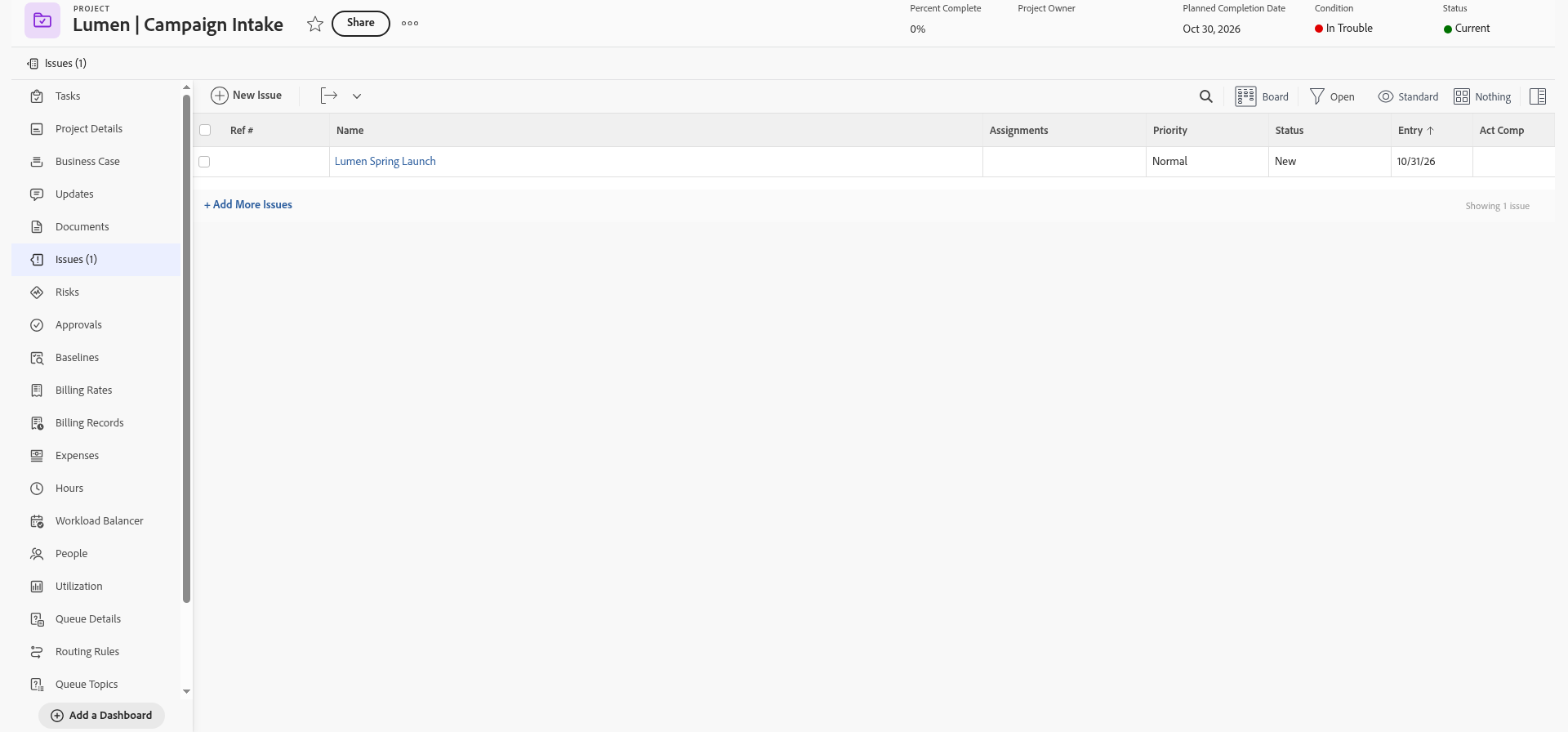
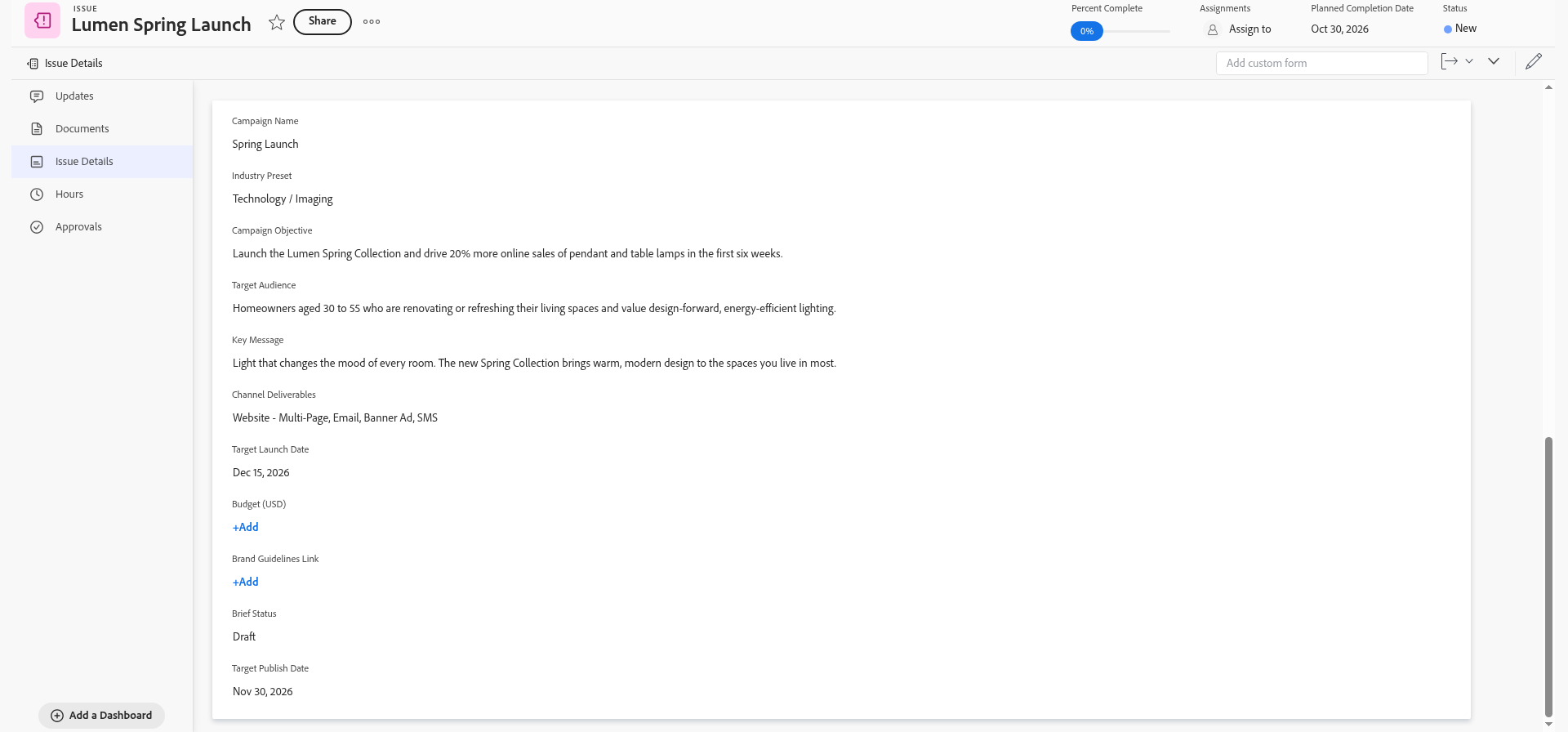
Every campaign starts in one Workfront intake queue. The marketer fills in a structured campaign brief built on a custom form: campaign objective, target audience, key message and a required Target Publish Date. You can’t submit a brief without that date, because it drives everything downstream.
Nothing gets planned yet. The brief stays in Draft until someone approves it, so teams don’t spin up work on campaigns that haven’t been signed off.
Step 2
Brief approval
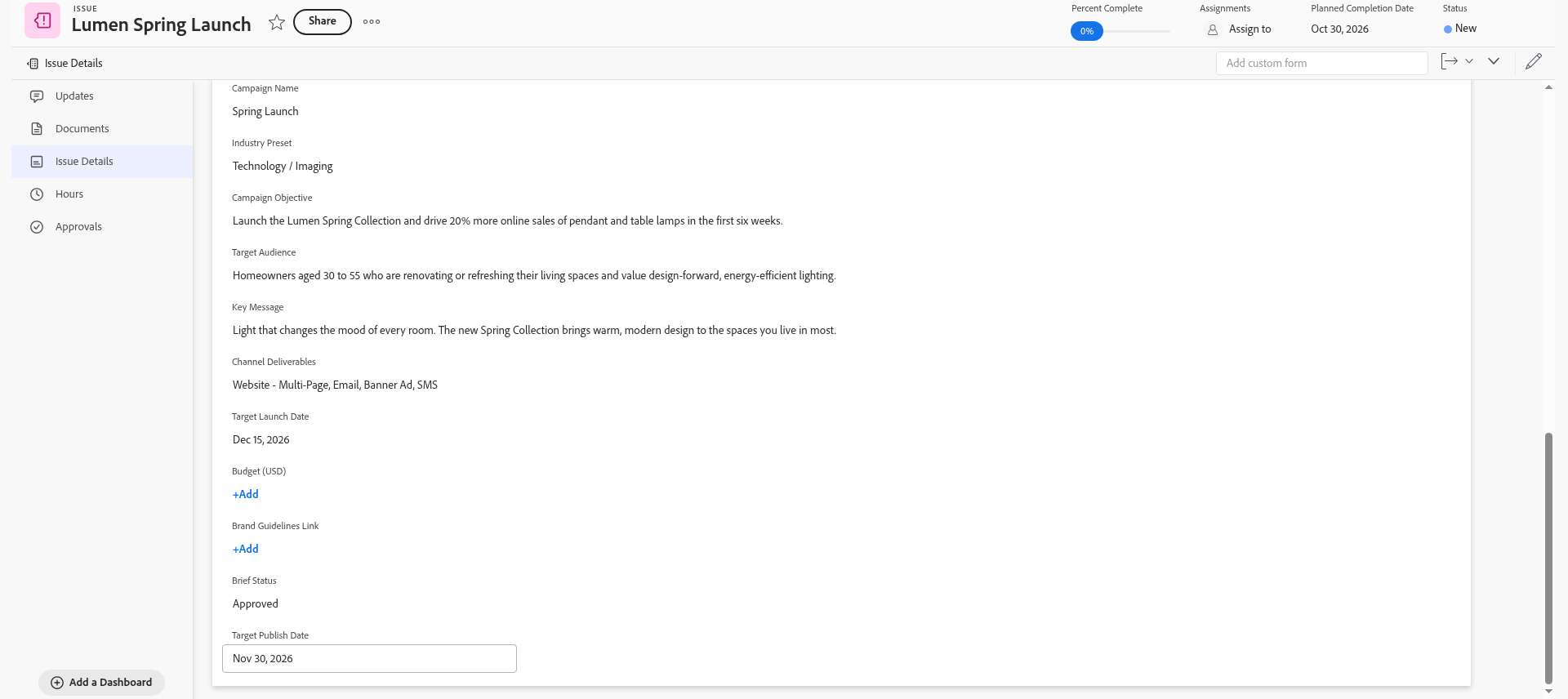
The approver opens the brief, sets Brief Status to Approved and saves. That one save is the trigger. A Workfront Fusion automation picks it up straight away.
Step 3
Fusion builds the plan and the AEM folders
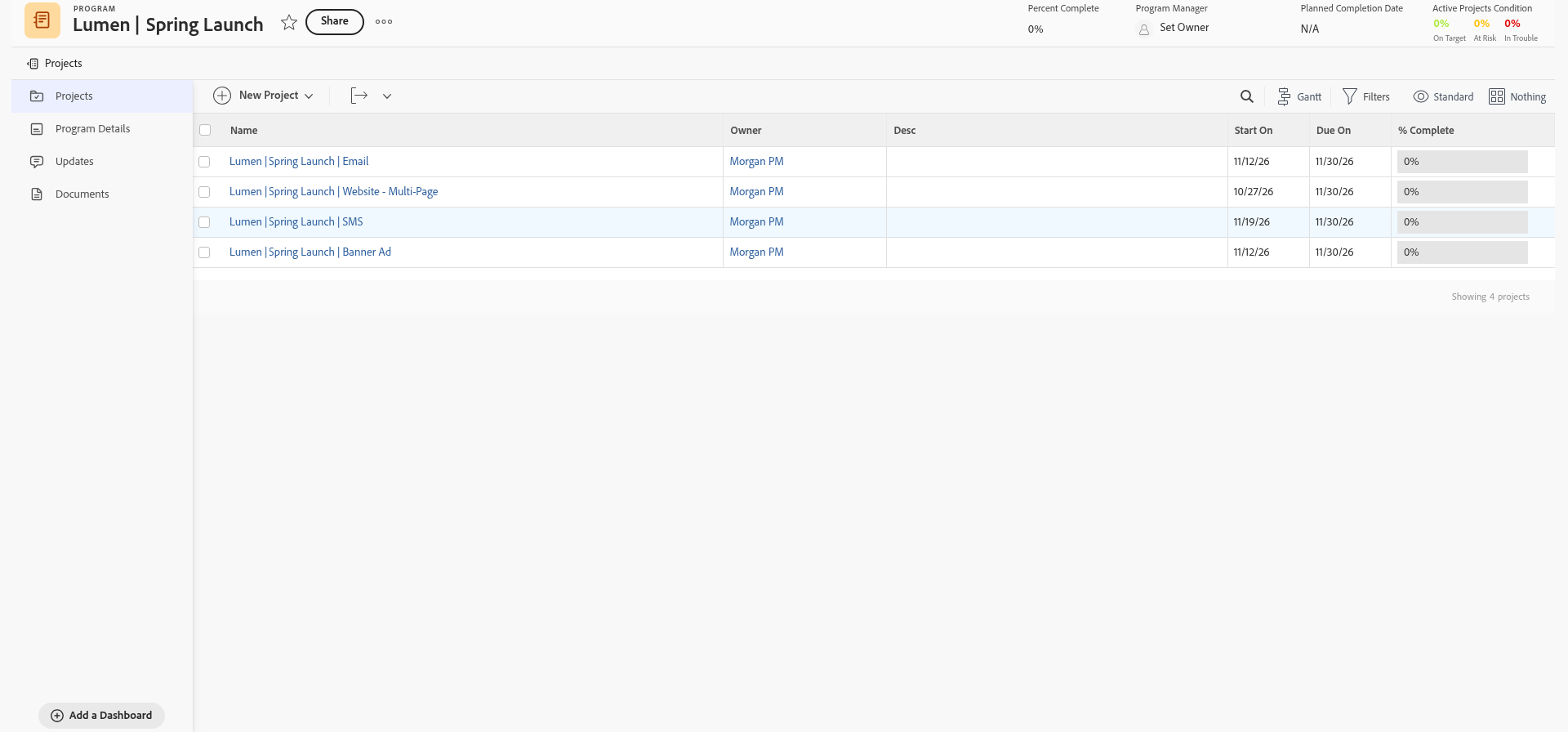
Once the brief is approved, Fusion reads it and builds the plan:
- Program: a Spring Launch program under the Lumen & Co. Marketing portfolio.
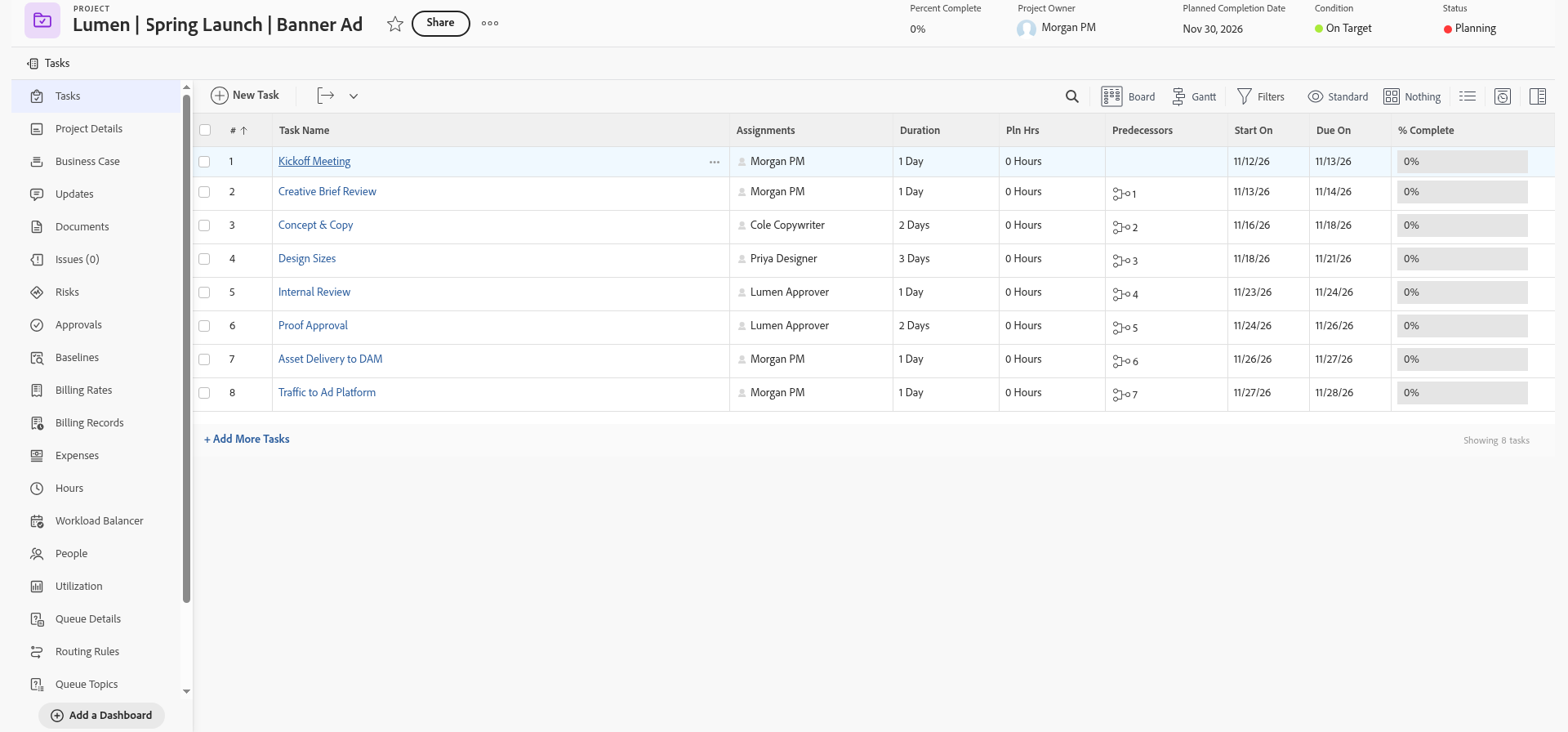
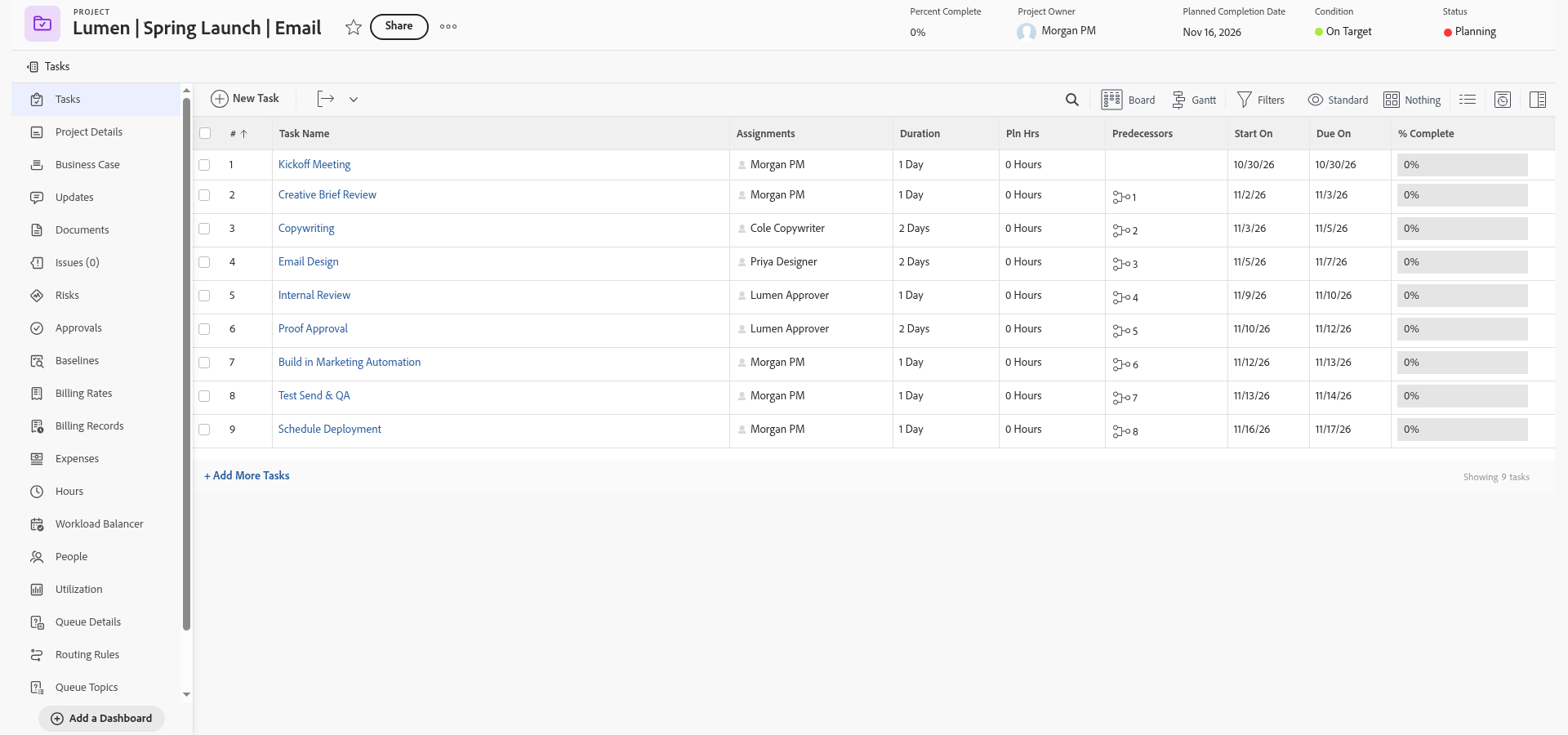
- Channel projects: four projects from templates (Website, Email, Banner Ad and SMS), each with a project manager and tasks already assigned to design and copy.
- Schedule: every project is scheduled backward from the Target Publish Date, so Workfront works out when each task has to start to hit the launch.
- AEM folders: a matching AEM Assets folder for each campaign and channel, with a link posted back on the Workfront project.
Because the schedule runs backward from the publish date, anything that should already have started is flagged At Risk on day one, not the week before launch.
Step 4
AI first draft image
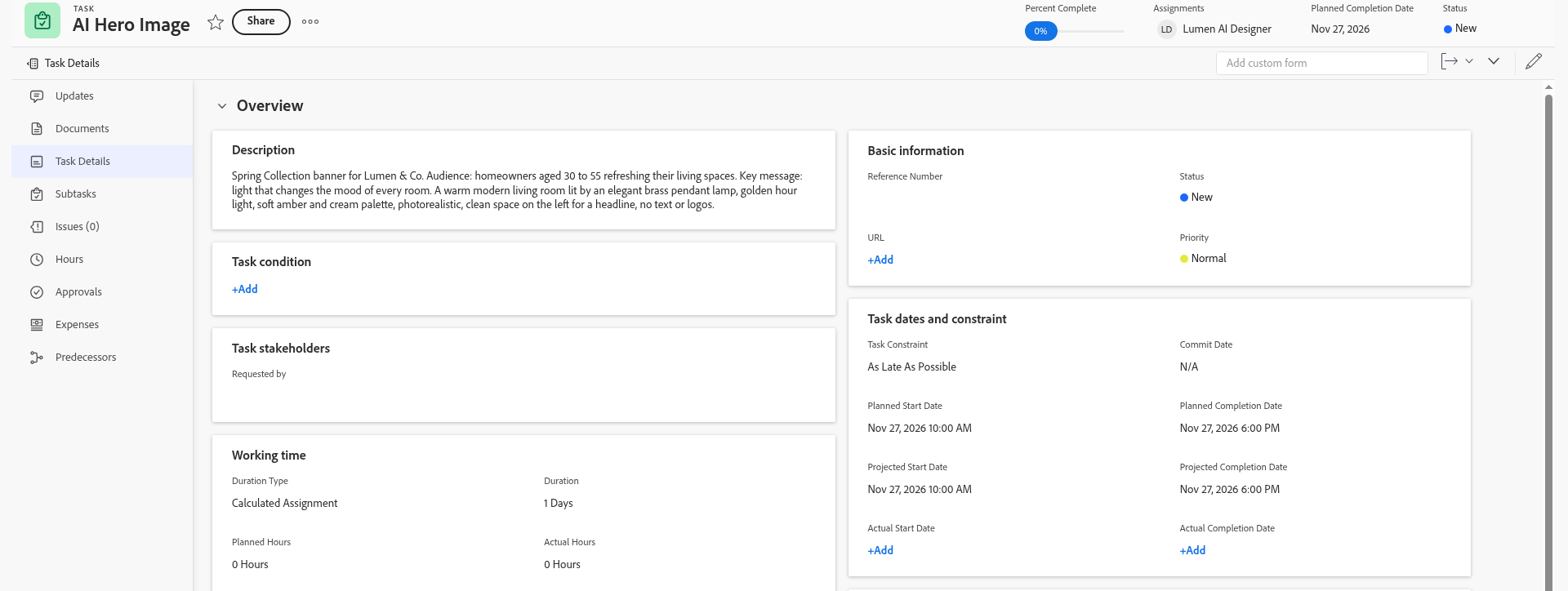
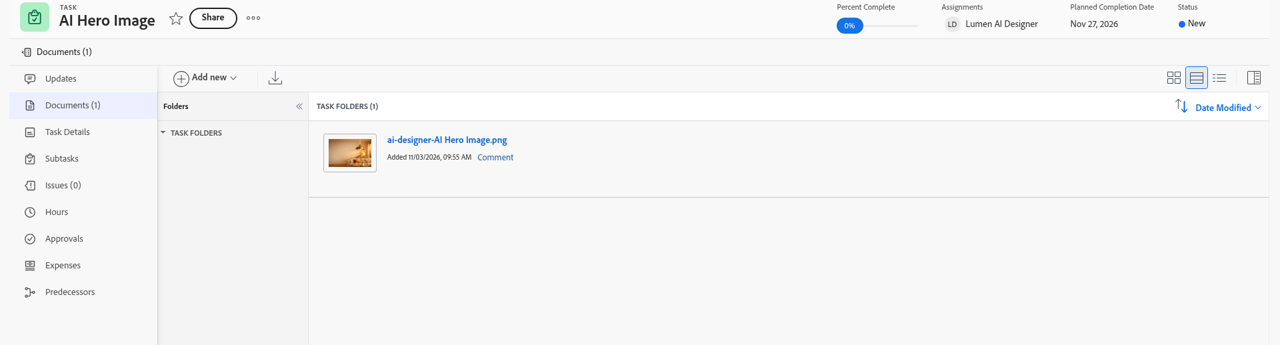
Assigning the hero image task to the Lumen AI Designer triggers a second Fusion automation. It takes the prompt built from the brief (audience and key message), sends it to an image model and attaches the finished image back on the Workfront task.
The point is where the output lands. AI-generated creative shows up in the same place as any designer’s work, so it goes through the same review.

Step 5
Proofing and approval
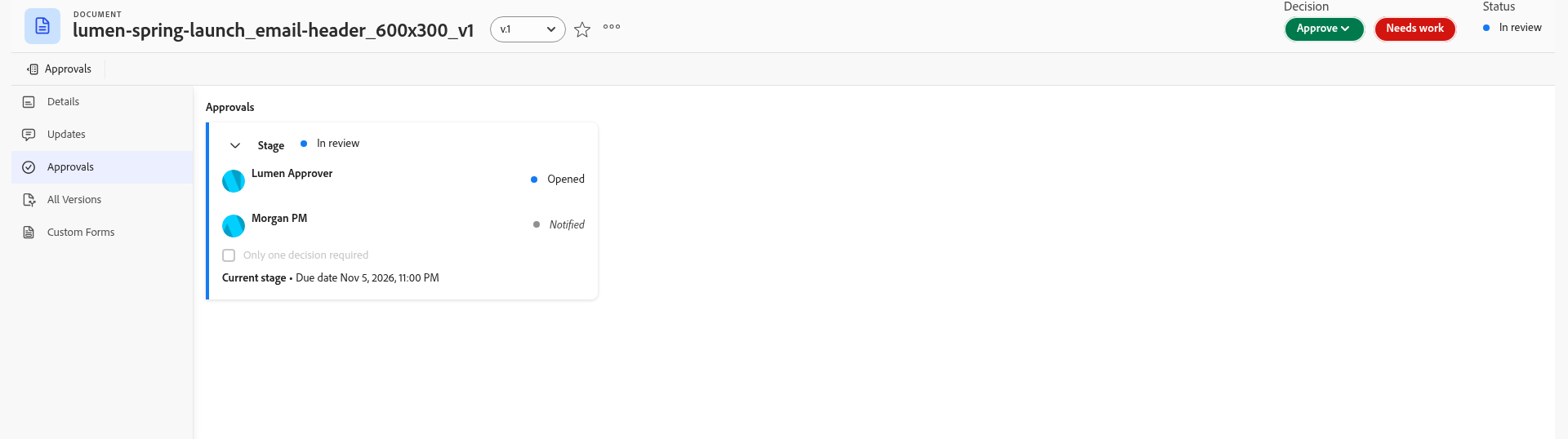
The image goes for approval with the same steps a designer would take. The approver reviews it in native Workfront proofing and approves it, and the decision, the approver and the date are recorded on the document. Every asset in the campaign, AI-generated or designer-made, goes through the same proofing.
The rule is simple: only approved assets go downstream. If the approver picks Needs work, nothing moves. The asset stays in Workfront for rework and never reaches AEM.

Step 6
Auto-publish to AEM Assets
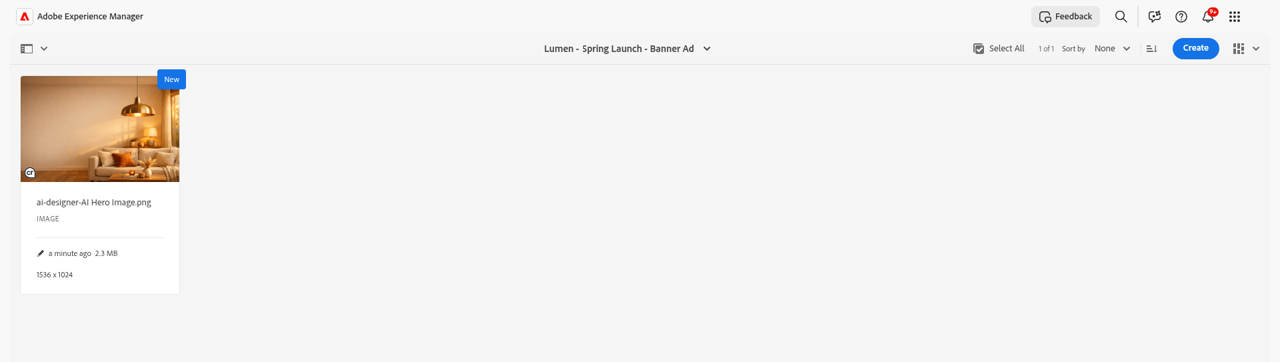
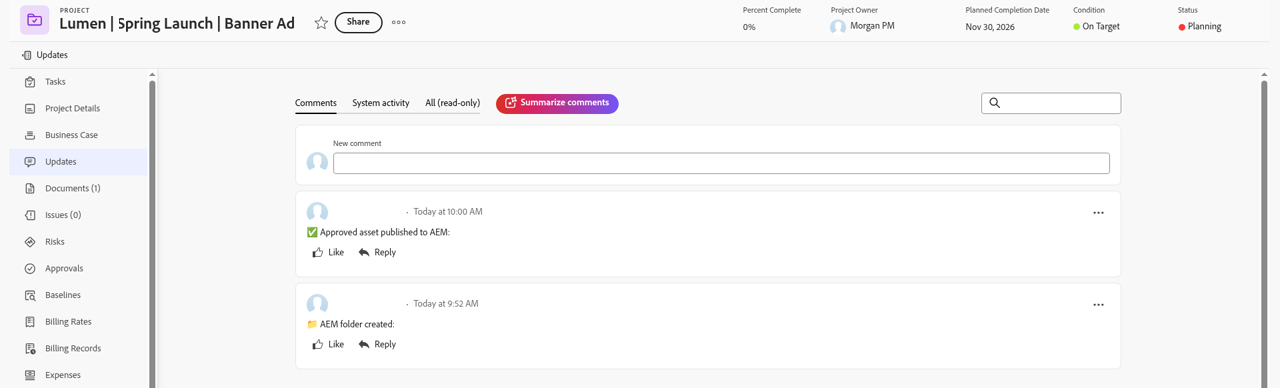
When the asset is approved, a third Fusion automation uploads the file into that campaign’s AEM Assets folder and posts a note back on the Workfront project with a link to it. No one downloads, renames or uploads anything by hand, and the folder naming is the same every time, which is what keeps assets findable later.
Step 7
Campaign dashboard
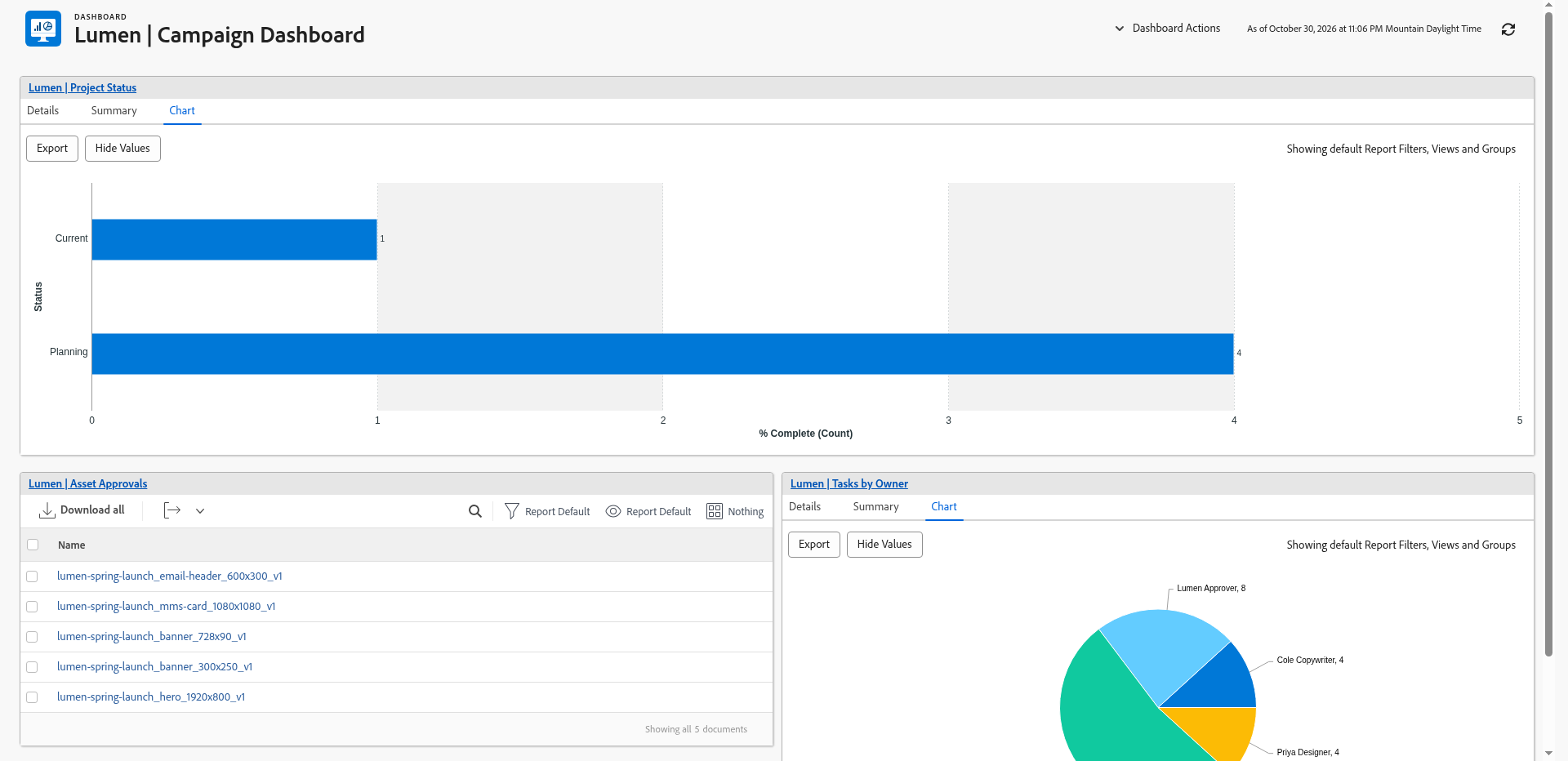
The last stop is one Workfront campaign dashboard: project status, the asset approvals list and tasks by owner. Leaders and project managers see where Spring Launch and its four channels stand, and anything at risk shows up first.
Optional step 8
Ask Claude for the schedule
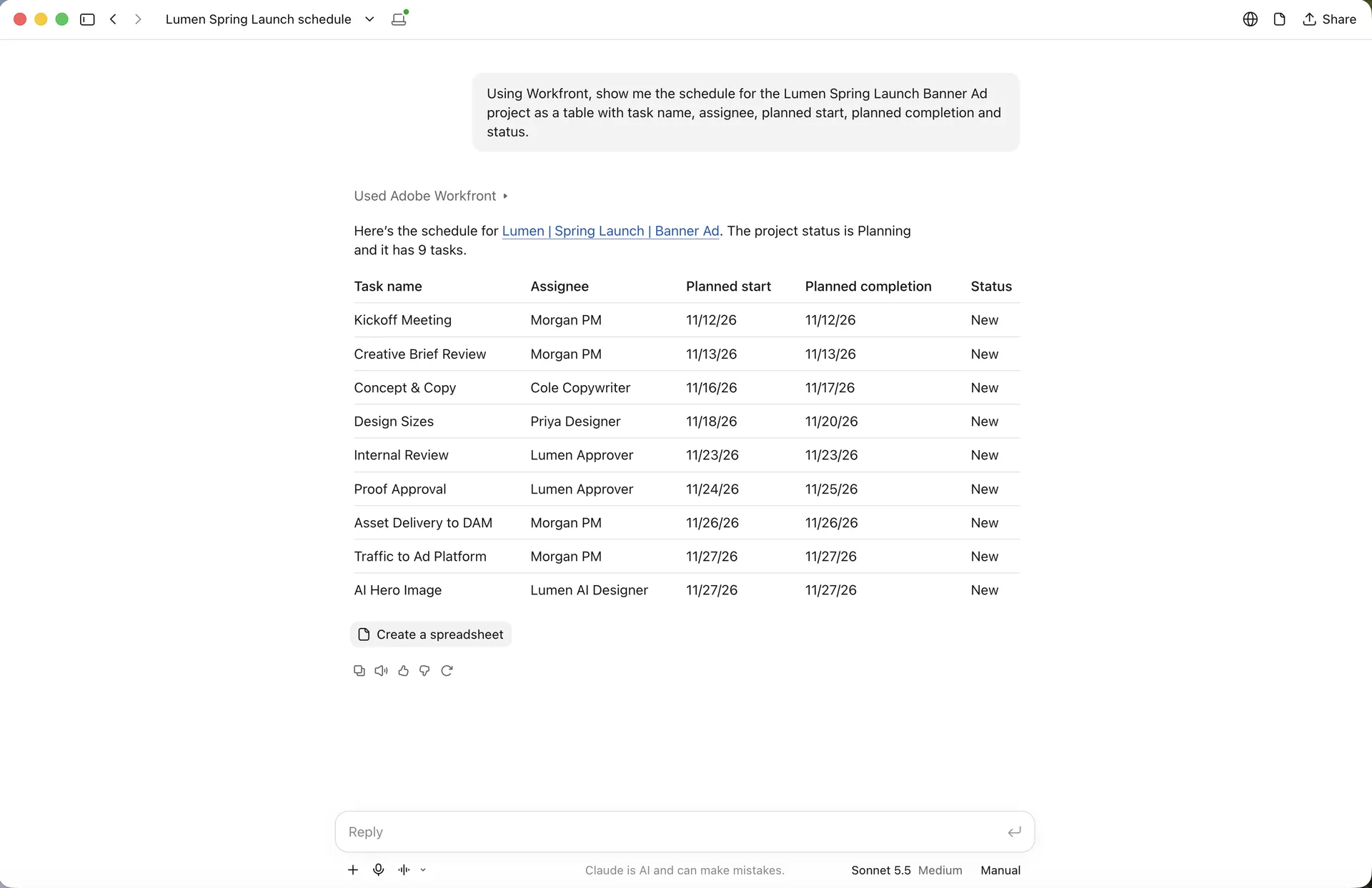
A lot of leaders won’t live in Workfront day to day. As an optional closer, we ask Claude, using the Adobe Workfront Connector for Claude, for the Banner Ad schedule in plain language. It reads the same live Workfront data the automation just built, including the AI Hero Image task, and returns it as a table. Same supply chain, a different front door.
What runs live and what we talk through
We’re specific about this in the demo, so here it is up front.
Runs live:
- Workfront intake and the campaign brief.
- Brief approval.
- Workfront Fusion auto-planning: program, channel projects, schedule and AEM folders.
- AI image generation from the brief, attached to the Workfront task (third-party model as a stand-in).
- Proofing and approval.
- Auto-publish to AEM Assets.
- The Workfront campaign dashboard.
- Optional: Claude with the Adobe Workfront Connector for Claude.
Talked through (where the workflow extends next):
- Photoshop and Creative Cloud, through the Workfront extension for Creative Cloud.
- Adobe Firefly and GenStudio, in place of the stand-in image model.
- Marketo and Salesforce, for campaign alignment with the Workfront program.
Why Alberta Consulting Group
We’re a Calgary MarTech consultancy and Adobe Silver Solution Partner. We built this demo ourselves in Workfront, Workfront Fusion and AEM Assets, and we walk through exactly what each integration does. No black boxes.

FAQ
Is Lumen & Co. a real client?
No. Lumen & Co. is a fictional brand we created for this demo. Every campaign, person and asset is made up. The Workfront, Fusion and AEM configuration is real, and it runs in ACG’s Adobe sandbox.
Is this a recording or a live demo?
It’s live. We run it in Workfront, Workfront Fusion and AEM Assets with you on the call, then leave time for questions.
Does the demo use Adobe Firefly?
Not live. The AI first draft step uses a third-party image model as a stand-in. Adobe Firefly and GenStudio are the Adobe-native path for brand controls and commercial safety, and we talk through how the workflow extends to them.
Can this connect to Marketo or Salesforce?
The workflow extends to Marketo and Salesforce, and we talk through how. They aren’t part of the live demo.
Do I need AEM Assets for this to work?
The demo publishes to AEM Assets, which is how the approved asset lands in the right folder automatically. We’re happy to talk through how this maps to your current stack.
What happens after the demo?
Typically a working session with your creative and marketing ops leads to map your current intake and approval steps, so we can scope a next phase properly.
Book a demo
We’ll walk you through the full flow live, from brief to published asset, and leave time for your questions.